How do I send an estimate to multiple recipients?
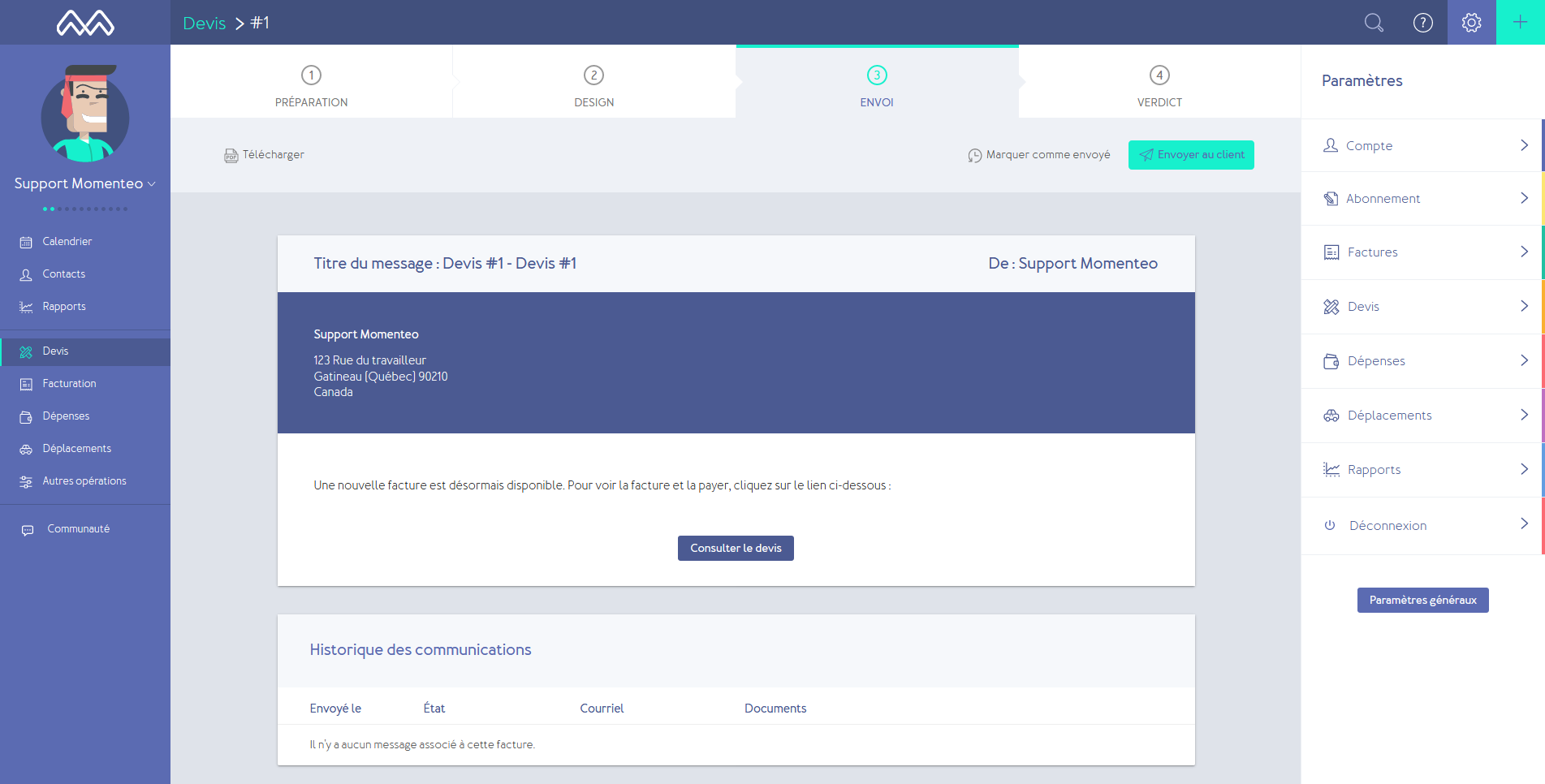
- Go to the specific estimate.
-
Click "Send".
-
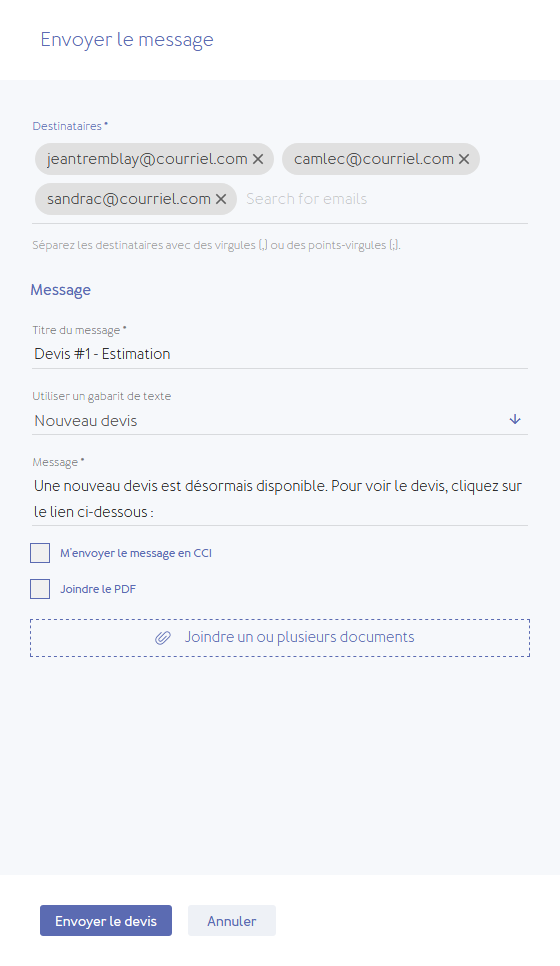
Enter the addresses of all recipients, separating them with a comma or a semicolon.
Can I receive a copy of the estimate in my email inbox?
Yes. Simply check the "BCC me on the message" box when sending the quote.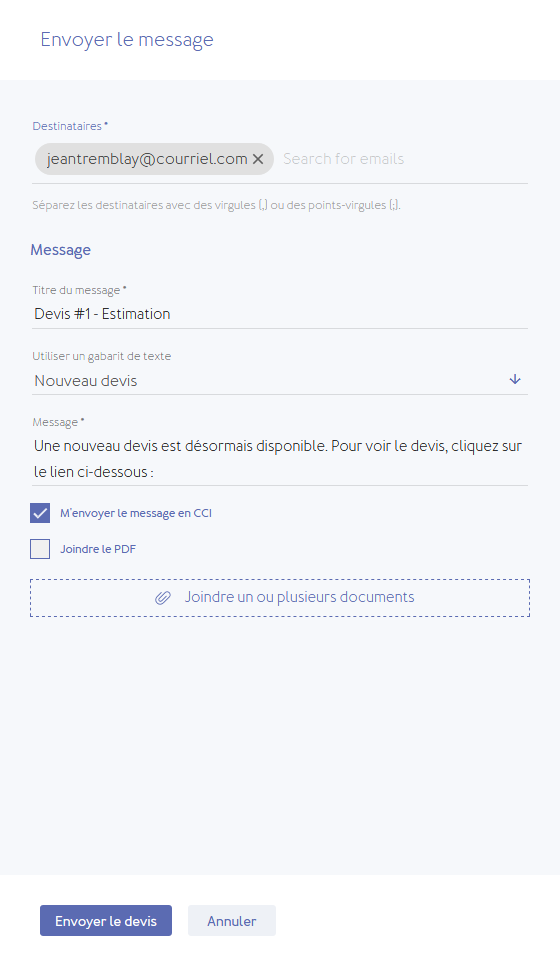
How do I send the estimate using my own email system?
Simply download it (in PDF format) and attach the file to your email.
Is it possible to know when the client has received or read my estimate?
- Go to the specific estimate.
-
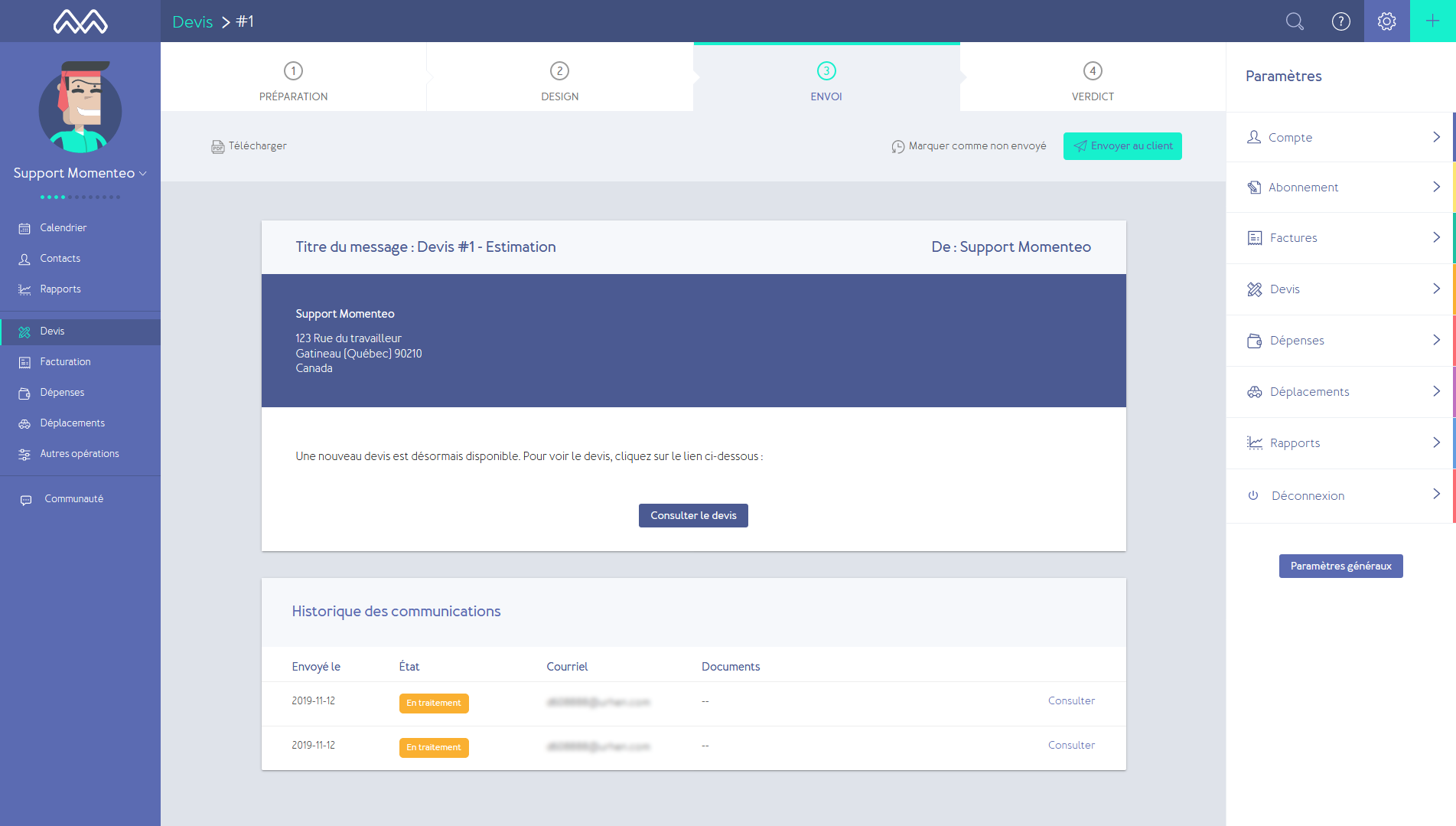
Go to "Communication History" to see the status of the estimate with your contact.
Can I make changes to an estimate that has already been sent?
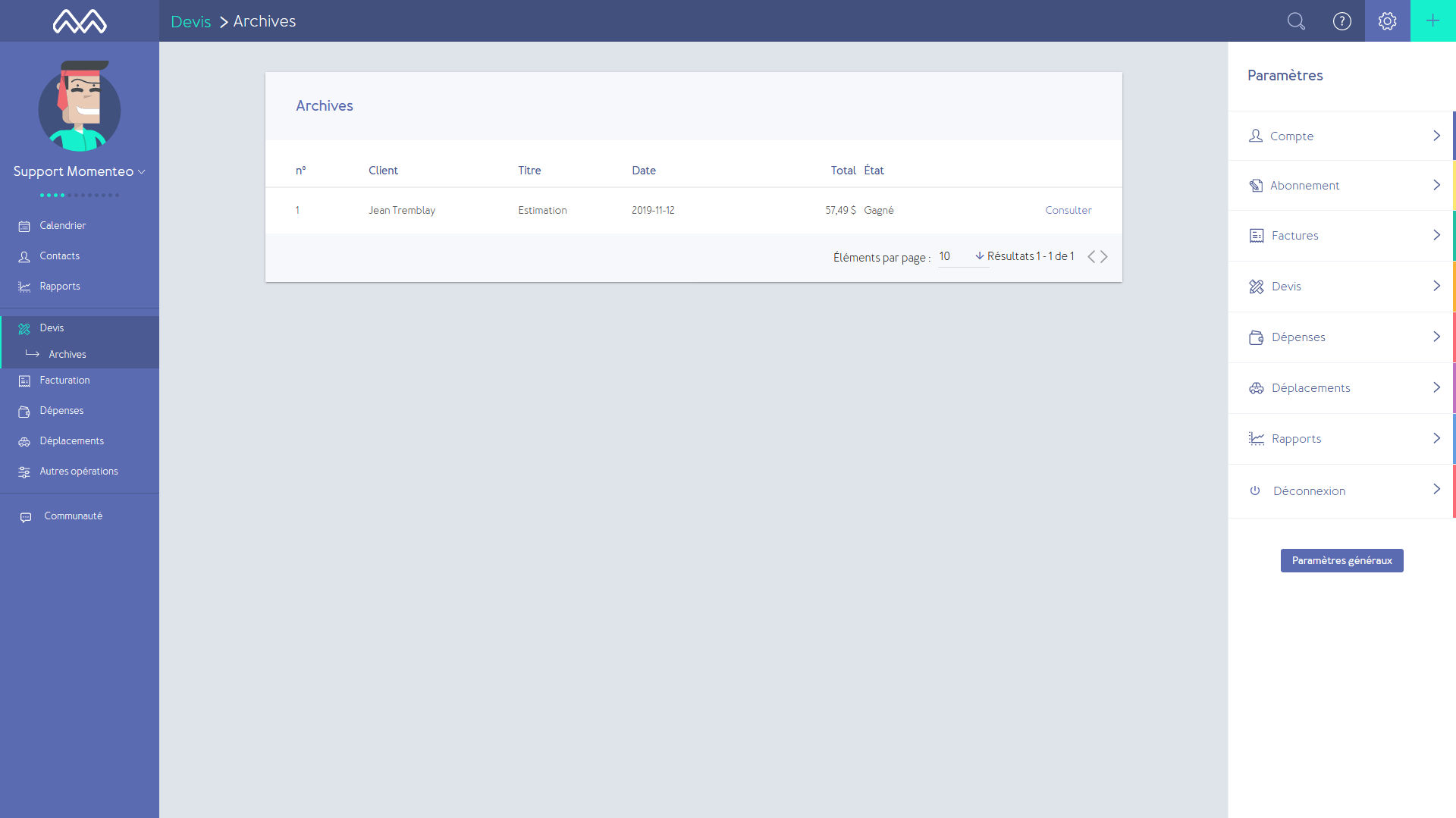
Yes. Simply go to the archives and view the specific estimate. You can make changes and download or resend the document at any time.
Can I convert my estimate into an invoice once it has been accepted?
Yes. Once an estimate is won, you can automatically convert it into an invoice.
- Click "Estimate" in the left-hand column of the page.
- Find the relevant estimate.
- Go to Step 4, "Verdict".
-
Click the "Convert to invoice" button on the right side of the page.
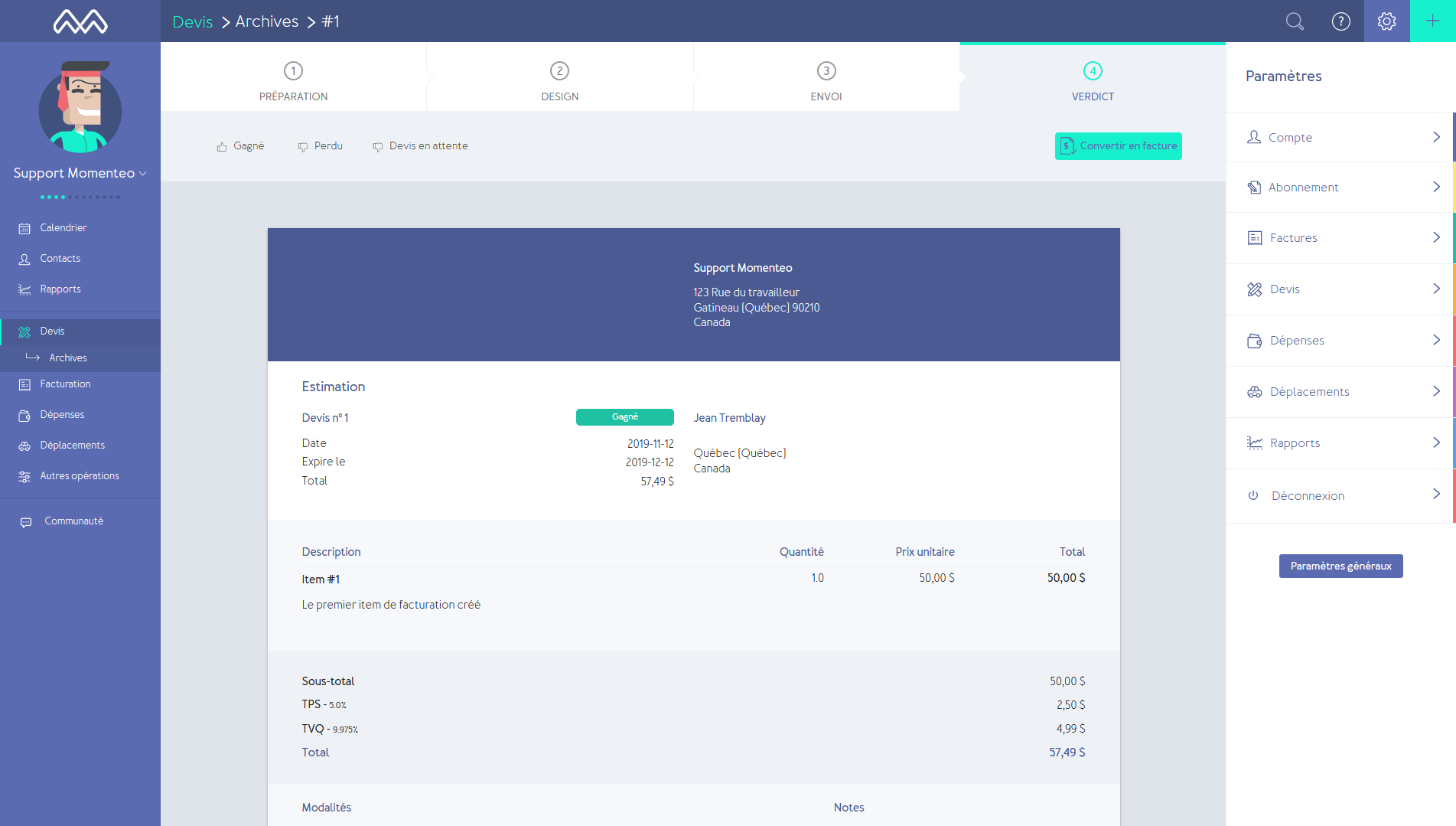
- Your invoice is then created automatically; you can edit it if necessary and send it to the client.
Note: Won estimates remain available in the Estimate section for 30 days before being automatically archived.
How do I find an estimate?
You have three options:
- Click on "Estimates" in the dashboard. You will have access to all your estimates: Estimates to be sent, Pending estimates, and Won estimates.
- Use the search bar located on the right side of the page and enter either the amount, the estimate number, or the contact name. All estimates associated with that contact will be displayed.
- Go through your client's profile. Click on "Contacts" in the left-hand column of the page. Select your client. All estimates associated with that client will be displayed.
How do I view all my estimates?
Click on "Estimates" in the dashboard. You will have access to all your estimates: Estimates to be sent, Pending estimates, and Won estimates.
How do I change an estimate's status?
Momenteo allows you to closely track your estimates by assigning them a status.
- Go to Step 4, "Verdict."
-
Click the icon to select the appropriate status.
- Won estimate: When your estimate has been accepted by the client.
- Lost estimate: When your estimate has not been accepted by the client.
- Pending estimate: When your estimate has been sent, but you have not yet received a response.
-
You can also click on "Convert estimate to invoice."