Who are my contacts?
The "Contacts" section allows you to manage all information regarding your key contacts.
Import contacts from a CSV file
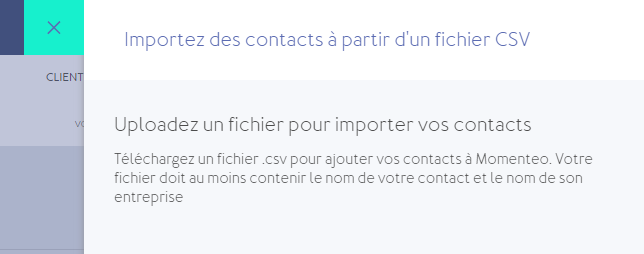
You can upload a CSV file to import your contacts into Momenteo. Your file must contain at least the contact's name and their company name.
- Go to "Settings" in the top right corner of your screen. Click on "Account."
- Go to the "Data Import" section.
-
Click on "Choose file" to select the file from your computer.
- Click on the "Contact Name" field and select the "Client Name" for your first contact.
-
Click on "Import contacts." Your contacts will be added to your Contacts list and displayed on the screen.
Add a contact
You can easily add a contact at any time.
- Click on "Contacts" in the left-hand column of the page.
- Click on the + symbol ("Add new contact") in the top right corner of the page.
-
Enter the contact's full name and primary email address.
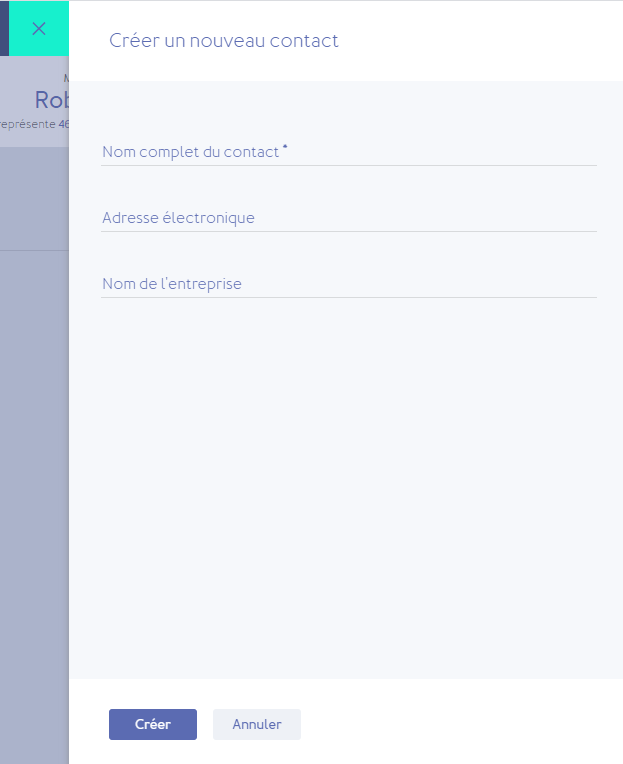
- Click on "Create."
- You will be redirected to the newly created contact profile.
-
You can edit or add information to the profile as needed: General Information, Billing Information, Settings, and Contact Details.
What other information can I find in the contact profile?
In the contact profile, you can also find a summary of the following: Information, Notes, Quotes, Invoices, Expenses, Travel, Account Statement, Credits, and Billing Items.
Edit a contact's name
- Click on "Contacts" in the left-hand column of the page.
- Click on the desired contact.
- In the contact profile, under the General Information section, click on "Edit."
-
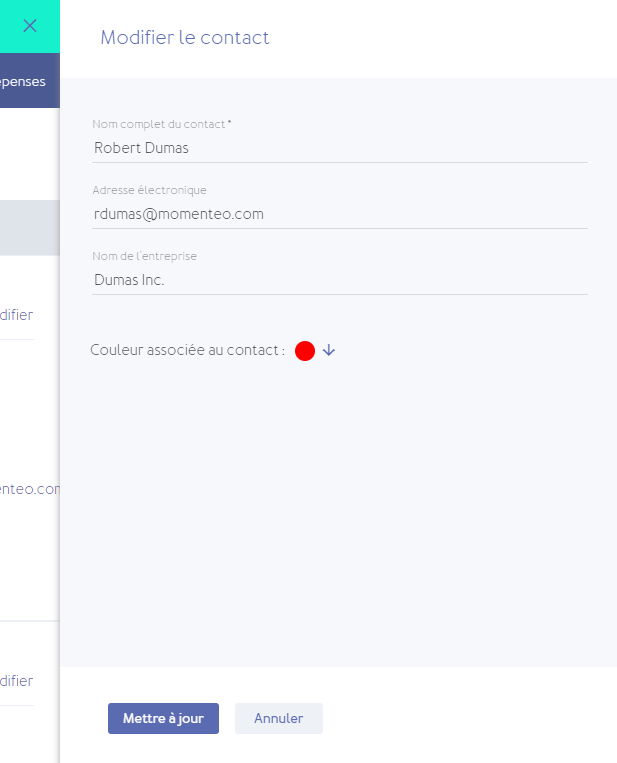
Edit the contact's full name.
-
Click "Update".
Add or edit a contact's billing email address
- Click "Contacts" in the left-hand column of your page.
- Click on the desired contact.
- In the contact profile, under the "General Information" section, click "Edit".
-
Edit the "Primary email address".
-
Click "Update".
Add or edit the recipient for invoices
- Click "Contacts" in the left-hand column of your page.
- Click on the desired contact.
- In the contact profile, under the "Billing Information" section, click "Edit".
-
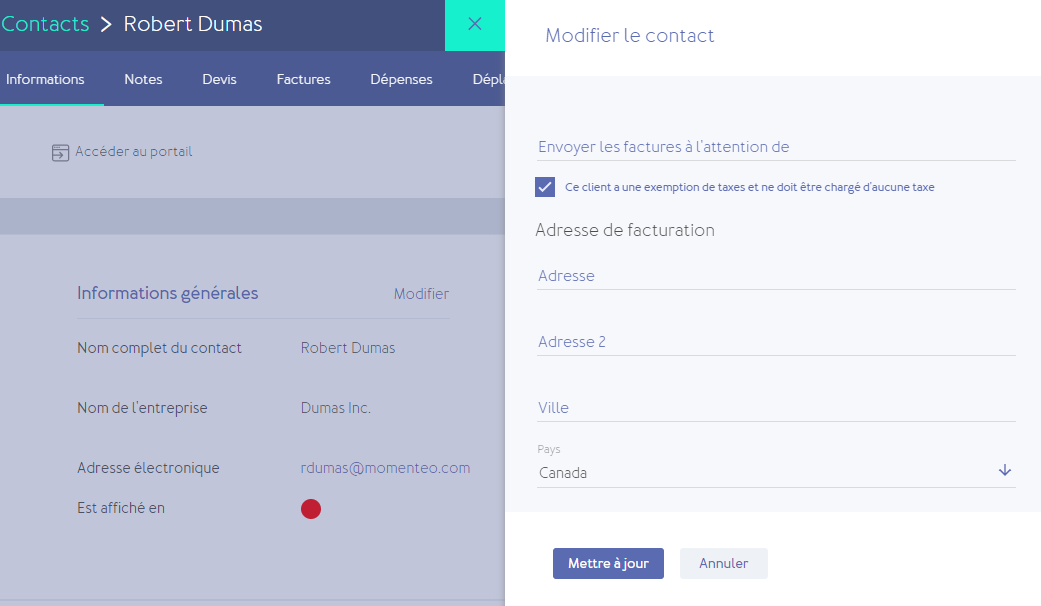
Edit the contact name in the "Send invoices to the attention of" field.
-
Click "Update".
Add contact details
- To add contact details: Click "Contacts" in the left-hand column of your page.
- Click on the desired contact.
- In the contact profile, under the "Contact Details" section, click "Edit".
- Select the type of contact detail you wish to add from the drop-down list (Phone, Mobile, Email, Fax, or URL).
-
Enter the details in the text box.
-
Click "Update".
I work with a client in another language. How do I proceed?
- Go to your Contacts and select the profile of the client in question.
-
In "Settings," change the language used for communications.
Note: Documents sent via Momenteo will be accessible in the language of your recipient's web browser. The browser will detect the recipient's preferred language and display the documents in that language. If you choose to download them as PDFs to send yourself, they will be provided in the default language you have set up in your Momenteo account.
I bill multiple departments for the same client. Is it possible to separate them?
This feature is not yet available. For now, it is easier to create a separate contact record for each distinct entity.
Changing a contact's language
Momenteo allows you to select the language in which you want your contact to receive their invoices. Note that if you select a language different from your own default language, invoices in edit mode will still be displayed in your own language. You will only be able to view the invoices in your client's language on the final invoice, either by downloading or previewing it.
- Click on "Contacts" in the left-hand column of your page.
- Click on the desired contact.
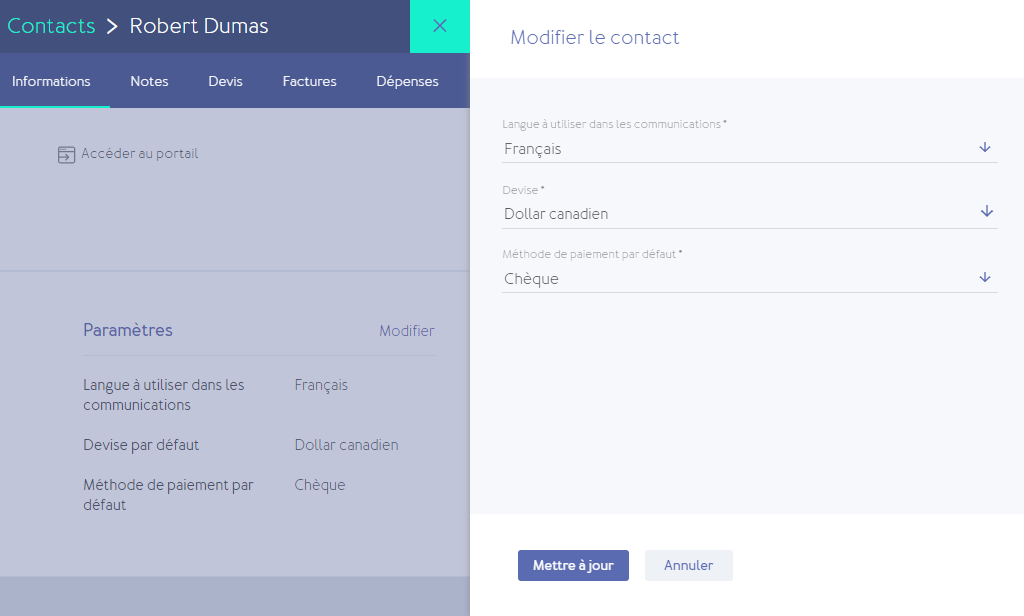
- In the contact record, under the "Settings" section, click "Edit."
-
Change the language used for communications.
-
Click "Update".
Changing a contact's currency
Momenteo allows you to select the currency in which you wish to invoice your contact. Note that if you select a currency different from your own, invoices in edit mode will still be displayed in your own currency.
- To change your contact's currency: Click "Contacts" in the left-hand column of the page.
- Click on the desired contact.
-
In the contact profile, under the "Settings" section, click "Edit".
- Change the default currency.
-
Click "Update".
Adding or changing a contact's default exchange rate
If you invoice in a currency other than your own, you may have an agreement with your contact regarding a fixed exchange rate. By default, Momenteo automatically calculates the exchange rate using Yahoo Finance data. However, you can add a default exchange rate applicable to a specific contact.
- Click "Contacts" in the left-hand column of the page.
- Click on the desired contact.
- In the contact profile, under the "Settings" section, click "Edit".
- Change the default exchange rate.
-
Click "Update".
Adding a personal note for a contact
Momenteo allows you to add personal notes to your contact profiles. This lets you record information or tasks.
- Click "Contacts" in the left-hand column of the page.
- Click on the desired contact.
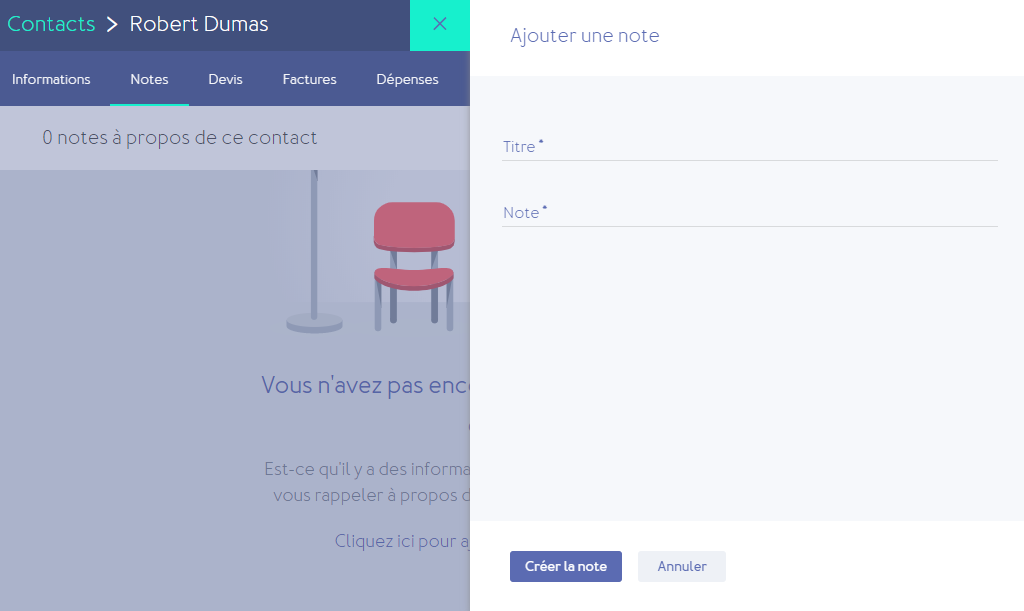
- In the contact profile, go to the menu bar and click the "Notes" tab.
-
Enter a title and your note.
-
Click "Update".
Exempting a client from taxes
There may be times when you do not charge a client tax—for example, in the case of a charity. If this applies, you can exempt your client from taxes.
- Click "Contacts" in the left-hand column of your page.
- Click on the relevant contact.
- In the contact record, under the "Billing Information" section, click "Edit."
-
Check the box labeled "This client is tax-exempt and should not be charged any tax."
-
Click "Update."